| RGB color viewer in c# |
| . |
| (Displays RGB colors and let them pick) |
| (Written by me in c# 2010) |
| Version: 180227Tu |
| . |
| A few decades ago I made an application in html/JScript in windows 98 running over Pentium 2 for viewing all colors available in 24bit RGB. Result was excellent and exciting. I was able to watch all possible colors in one place so easily. Plus it was so colorful also. Then a few years ago I repeated that application in c# and this time I did that for viewing all 32bit ARGB colors. Result of this time was exciting again. |
| Every thing was going so fine and ok but suddenly a problem arises. Problem I was facing was that I was not able to find lighter or darker color easily for selected RGB color by scrolling Red, Green or Blue color values. Then I stumbled upon HSB/HSL color space and my problem got solved. But then new problem started. This time problem was to get any color in RGB color space and then get it's lighter or darker shade in HSB/HSL color space. So I made an application in c# for doing so. During that process I made some other utility applications as well. |
| One of those application was to display HSB colors with ability to copy selected color to clipboard. In that application colors were displayed via 2 colored rectangles. First I called Z box and initially used that for displaying Hue of HSB color. Second I called XY box and initially used that for displaying Brightness and Saturation of HSB color. During that process I found that by changing assignments for XYZ axis in both boxes, color view in XY box becomes interestingly different. |
| After that I made another application, this time for RGB color space. And I am sharing code for this RGB color space application here. |
| .. |
| Salient features of application: |
| In this application colors are displayed vie 2 color boxes. One is called Z box and other is called XY box. Initially Blue color is assigned to Z box. Green color is assigned to Y of XY box and Red color is assigned to X of XY box. Color assignment for XY and Z can be changed via 'Axis' menu. Color can be selected by mouse click, scrolling scroll bars or by entering values in Red, Green and Blue fields. Selected color's values are displayed in RGB and HSB section. Selected color can be copied to clipboard in decimal or hex format for bot RGB and HSB. All this is explained in 'How to use' and 'User Interface' of help menu' |
| . |
| Screen shots of 'RGB Color viewer' with description: |
| Following are screen shots of 'RGB Color viewer' at different stages with their description. |
| . |
| Application on Load: |
| 'RGB Color viewer' looks like in the following image when it loads. Menus are on top line and status is at bottom line. Area in between them is divided in 2 columns. In left column are 2 colored rectangles and 3 scroll bars. Rectangles display Red, Green and Blue part of RGB color. Scroll bars are for selecting value of respective color. In right column selected color information is displayed. At start Z is Blue, Y is Green and X is Red and their initial values are 175, 128, 128. |
| . |

|
| . |
| . |
| Help menu expanded: |
| 'RGB Color viewer' looks like in the following image when help menu is clicked. Showing it's 5 options: About, Purpose, User interface, How to use and Copyright. Each option of help menu is shown and explained separately in following. |
| . |

|
| . |
| . |
| Help/About: |
| 'RGB Color viewer' looks like in the following image when 'About' in 'Help' menu is clicked. This menu-item displays basic information about application and it's author. |
| . |

|
| . |
| . |
| Help/Purpose: |
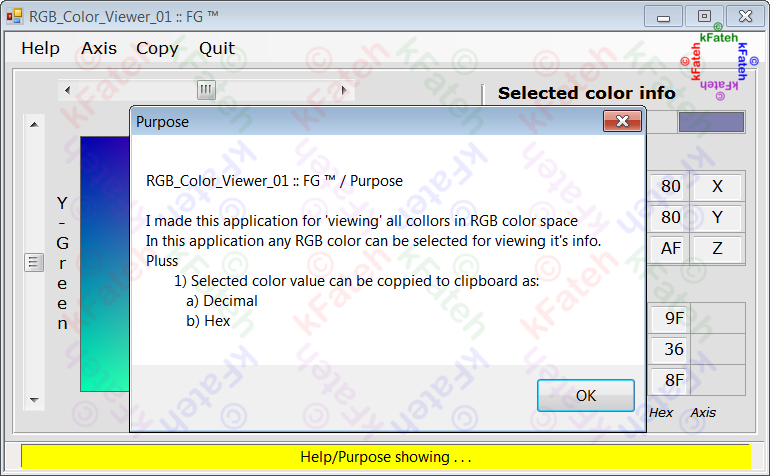
| 'RGB Color viewer' looks like in the following image when 'Purpose' in 'Help' menu is clicked. This menu-item displays text explaining purpose of the application. |
| . |
|
| . |
| . |
| Help/User interface: |
| 'RGB Color viewer' looks like in the following image when 'User interface' in 'Help' menu is clicked. This menu option explains application's user interface as visible in following image. |
| . |

|
| . |
| . |
| Help/How to use: |
| 'RGB Color viewer' looks like in the following image when 'How to use' in 'Help' menu is clicked. This menu option explains how to use this application as visible in following image. |
| . |

|
| . |
| . |
| Help/Copyright: |
| 'RGB Color viewer' looks like in the following image when 'Copyright' in 'Help' menu is clicked. This menu-item displays copyright text for this application. |
| . |

|
| . |
| . |
| Help/Axis: |
| 'RGB Color viewer' looks like in the following image when 'Axis' menu is clicked. Showing it's 6 options with all possible color combinations for xyz axis. Clicking on any of these options updates colors of xyz axis. |
| . |

|
| . |
| . |
| Colors for axis changed: |
| 'RGB Color viewer' looks like in the following image when 'RGB (ZXY)' is clicked in 'Axis' menu. Colors for X, Y and Z axis are changed and Z and XY boxes are updated. |
| . |

|
| . |
| . |
| Help/Copy: |
| 'RGB Color viewer' looks like in the following image when 'Copy' menu is clicked. This menu allows copying to clipboard RGB or HSB values in decimal or hex. |
| . |

|
| . |
| . |
| Outputs for all Axiz values: |
| I liked the look of colors in XY box when I changed axis values from 'Axis' menu and enjoyed as well. All options from 'Axis' menu gave good looking result. Screen shot of 'RGB Color viewer' for all axis values when values for Red, Green and Blue are set to 128 are displayed in following images. |
| . |
| XYZ: |
| 'RGB Color viewer' looks like in the following image when axis is set to XYZ by clicking 'RGB (XYZ)' in 'Axis' menu. |
| . |

|
| . |
| . |
| XZY: |
| 'RGB Color viewer' looks like in the following image when axis is set to XZY by clicking 'RGB (XZY)' in 'Axis' menu. |
| . |

|
| . |
| . |
| YXZ: |
| 'RGB Color viewer' looks like in the following image when axis is set to YXZ by clicking 'RGB (YXZ)' in 'Axis' menu. |
| . |

|
| . |
| . |
| YZX: |
| 'RGB Color viewer' looks like in the following image when axis is set to YZX by clicking 'RGB (YZX)' in 'Axis' menu. |
| . |

|
| . |
| . |
| ZXY: |
| 'RGB Color viewer' looks like in the following image when axis is set to ZXY by clicking 'RGB (ZXY)' in 'Axis' menu. |
| . |

|
| . |
| . |
| ZYX: |
| 'RGB Color viewer' looks like in the following image when axis is set to ZYX by clicking 'RGB (ZYX)' in 'Axis' menu. |
| . |

|
| . |
| . |
| [Note: During first posting] During development I gave this application 'Color-Model-RGB-Space-RGB-2' as name but during writing this post I used 'RGB-Color-Viewer-2' as it's name. In it's next version I will use 'RGB-Color-Viewer-x'' as it's name during development also. |
| [Note: 2018 02 27 Tue _ PST 05:52 PM] LoL by mistake during development (for changing name of project) I gave it 'RGB_Color_Viewer_01' name but in this post I used 'RGB-Color-Viewer-2' as it's name. I am not going to change anything (project's name or post's title) any more. |
| . |
| Enjoy Complete Source code of application written and compiled in visual studio 2010 Ultimate by me. Download it. Extract it. Read 'ReadMeFirst.txt' file and do as is explained in it. |

Tuesday, February 27, 2018
RGB Color Viewer - 2 - c sharp - 180227Tu

Saturday, February 17, 2018
Pakistan international highway - 180217Sa
| ||||||||||||||||||||||||||||
.
|


Friday, February 2, 2018
Happy 6000 PageViews - (2018 Feb 02 Fri)
|
Wednesday, January 31, 2018
Rubik cube game - 3 - C Sharp - 180231We
| Rubik's cube game in C# |
| . |
| (Computer game for solving Rubik's cube puzzle) |
| (Written by me in c# 2010) |
| Version: 180231We |
| . |
| On last year's (2017) birthday of my niece, one of my nephew, gave her 2 gifts. One was a good looking Barbie doll and another was colorful Rubik's cube. While my niece preferred Barbie doll more, I started to analyze Rubik's cube to get some idea how to play with it, to make me able to teach my niece how to play with it. After making some un-successful tries I started searching Internet for tutorials about playing Rubik's cube. |
| And during searching and researching about Rubik's cube I got an usual idea. Idea was to make softwares for (1) playing Rubik's cube game (2) finding shortest solution for any given pattern of Rubik's cube. So I started making plans for these softwares and then started coding and in some days made them. |
| During coding of rotations of Rubik's cube I was getting disoriented again and again. So to solve that problem I made a small cube of hard paper. Made 3x3 boxes on it's each side with pencil and numbered them like 2d matrix. Then during coding I used it for reference. Before using this technique I was having difficult time in finding the bug in cube side/face rotation methods. |
| . |
| Salient features of Rubik's cube game: |
| All 6 sides of Rubik's cube are displayed side by side with their side name above them. Side rotating buttons are also above each side on left and right of side name. Game can be played in two modes: manual or auto. In manual human plays and in auto computer plays random moves. |
| . |
| Screen shots of game and their description: |
| Following are screen shots of Rubik's cube solving game at different stages with their description. |
| . |
| Game on Load: |
| Game looks like in the following image when it loads. Menus are on top line and status is at bottom line. Area in between them is divided in 3 columns. In left column under 'Cube sides' heading are 6 colorful squares of 3x3 sub-squares. They are sides/faces of cube with their respective color. Each side's name is displayed above them. On left and right of each side name are buttons for rotating respective side. Left button for rotating side clockwise and Right button for rotating side counter-clockwise. In center column Moves log and game controlling controls are displayed. In right column rotation buttons are explained. |
| . |

|
| . |
| . |
| Help menu expanded: |
| Game looks like in the following image when help menu is clicked. Showing it's 5 options: About, Purpose, User interface, How to use and Copyright. Each option of help menu is shown and explained in following. |
| . |

|
| . |
| . |
| Help/About: |
| Game looks like in the following image when 'About' in 'Help' menu is clicked. This menu-item displays basic information about game and it's author. |
| . |

|
| . |
| . |
| Help/Purpose: |
| Game looks like in the following image when 'Purpose' in 'Help' menu is clicked. This menu-item display text explaining purpose of the game. |
| . |

|
| . |
| . |
| Help/User interface: |
| Game looks like in the following image when 'User interface' in 'Help' menu is clicked. This menu option explains game's user interface as visible in following image. |
| . |

|
| . |
| . |
| Help/How to use: |
| Game looks like in the following image when 'How to use' in 'Help' menu is clicked. This menu option explains how to use this game application as visible in following image. |
| . |

|
| . |
| . |
| Help/Copyright: |
| Game looks like in the following image when 'Copyright' in 'Help' menu is clicked. This menu-item displays copyright text for this game application. |
| . |

|
| . |
| . |
| 'New Game' button clicked |
| Game looks like in the following image when 'New Game' button in center column under 'Game' section is clicked. This button begins game starting process. |
| . |

|
| . |
| . |
| Play mode |
| Under 'New game' button are two radiobuttons called 'Manual' and 'Auto'. They are enabled only during after 'New game' button is clicked and before 'Start' button is clicked. They allow either human or computer to play the game. Select 'Manual' for human to play or select 'Auto' for computer to play. Computer only makes random moves so chances of computer solving the game is between in minimum moves possible to never. |
| . |
| . |
| 'Shuffle colors' buttons |
| 'Shuffle colors' button is also enabled only during after 'New game' button is clicked and before 'Start' button is clicked. Use this button for shuffling Rubik's cube. |
| . |
| . |
| 'Start' button clicked (Manual mode): |
| Game looks like in the following image when 'Start' button in center column under 'Game' section is clicked in manual mode. Only Rubik's cube patterns may be different. I used Rubik's cube patterns in following image in an online Rubik's cube solver to test my game and my game worked correctly. |
| .. |

|
| . |
| . |
| Some moves are made (Manual mode): |
| Game looks like in the following image when game is started in manual mode and some moves made. This image is not sequence of above image. Only Rubik's cube patterns may be different. |
| . |

|
| . |
| . |
| 'New Game' clicked during running game 'Manual': |
| Game looks like in the following image when 'New Game' button in center column under 'Game' section is clicked in 'Manual' mode while a game is already running. This option is useful for aborting an running game. This option gives options for actually aborting game or continue with the running game. |
| . |

|
| . |
| . |
| 'Start' button clicked (Auto mode): |
| Game looks like in the following image when 'Start' button in center column under 'Game' section is clicked in 'Auto' mode and some moves are made. |
| . |

|
| . |
| . |
| 'New Game' clicked during running game 'Auto': |
| Game looks like in the following image when 'New Game' button in center column under 'Game' section is clicked in 'Auto' mode while a game is already running. This option is useful for aborting an running game. This option gives options for actually aborting game or continue with the running game. |
| . |

|
| . |
| Game completed 'Manual': |
| Game looks like in the following image when it is completed/solved while game is in 'Manual' mode. Meaning all side/face square's are arranged in the same color as in the respective center square. When this happens game displays an alert message and a message in status bar to congratulate the player. This result was achieved by using generated moves from an online Rubik's cube solver site where I used starting patterns as mentioned above in "'Start' button clicked (Manual mode)"section. And felt happy on finding that my game was working correctly. |
| . |

|
| .. |
| . |
| After a completed game: |
| Game looks like in the following image when it is completed/solved and 'Congratulating' alert message is also closed. Now game is ready for player to start New game. |
| . |

|
| . |
| . |
| I decided to display all 6 sides/faces of Rubik's cube side by side instead of displaying it as a rotate-able cube because 'side by side' way looks better and easy to understand to me. |
| . |
| Enjoy Complete Source code of application written and compiled in visual studio 2010 Ultimate by me. Download it. Extract it. Read 'ReadMeFirst.txt' file and do as is explained in it. |
Monday, January 1, 2018
laptop of my dreams (2018) - 180101Mo
|
Thursday, October 5, 2017
Prime numbers generator - 6 - 171005Th
| Prime numbers generator - 6 [1/2] | |
| . | |
| (Finds all prime numbers between 2 and 32000000002 - c#) | |
| Version: 171005Th | |
| . | |
| Once upon a time a few decades ago I was frequent visitor of "Liaquat National Memorial Library - Karachi" for reading books. I do not actually remember now how and when I went there for the first time. But I do remember that I continued going there for a few years. Although books on computer programming were my main interest but I enjoyed reading books on different subjects and reading different news papers as well. Books on "Lisp" and "Prolog" I studied there for the first time, but my main interest was books on "C" programming language and there were a lot of good quality books available there on C. | |
| . | |
| Environment of "Liaquat National Memorial Library" was very good: calm and peaceful. After a few visits I learned that if I do not come early then surely I will not get chair in the huge reading hall of the library. It was great to know that "Liaquat National Memorial Library" was in so huge demand. Therefore, after knowing that, whenever I went there, I went early. | |
| . | |
| Because "Liaquat National Memorial Library" is located beside PTV Karachi therefore during coming and going I also had some glimpses of TV stars of that time e.g. "Subhani ba Yunus" etc. As far as I do remember I also saw famous movie star of Pakistan "Mohammad Ali" one afternoon standing with someone near entrance steps of library building. I think he was minister at that time. Then time was around afternoon and I was mentally very busy and/or occupied in getting photostat of some chapters of computer book on Unix. Otherwise at least I would have requested for his autograph. He was tall with pinkish white in color and had a pleasant smile on his face. I think I missed the opportunity. | |
| . | |
| Let’s come back to the topic. On one visit to "Liaquat National Memorial Library" I requested for the current book of "Guinness book of world records". And in that book, for the first time I came to know about competition for finding prime number with larger number of digits than number of digits in any already known prime number. I knew how to find weather a number is Prime or not so automatically an idea visited my mind to find some prime numbers on computer myself. | |
| . | |
| Since then I am trying different softwares available to me on different times for making applications for finding as many prime numbers as possible. The list of softwares I used so far is as follows: | |
| . | |
| |
| . | |
| On different times in different softwares I tried different methods for finding prime numbers like “long hand division method” and different variations of “Sieve method”. Also I kept researching on the internet and there I found pages on some sites displaying first few prime numbers for example first million prime numbers etc. I said Ok . . . I am also finding prime numbers, a lot of prime numbers and saving them on my pc's HDD. Why not I put prime numbers found by me, although I am not first to find them, on internet some where some day. | |
| . | |
| Therefore I re-ran current version of the application I made for finding primes to find prime numbers under different upper limits and found that for upper limit of 20000000, number/count of prime numbers is nearly above ONE Million. Some out puts of those Prime number searches I am sharing bellow. So far the maximum I reached for continuous list of prime numbers is: | |
| . | |
| |
| . | |
| Following is the list of first "6542" prime numbers, under 2^16, I found using software made by me using C# 2010. I used this upper limit because it reminds me of "unsigned int" of 16 bit computers. | |
| . | |
| . | |
| List of prime numbers under 2^16 | |
| . | |
| . | |
| List of prime numbers under 20000000 | |
| . | |
| Following are the links to files containing first 1270607 prime numbers I found under 20000000 using software I made in c# 2010. | |
| |
|
Download all 20 files containing all prime numbrs under 20000000 (prime number count 1270607) as a zip file | |
| . | |
| . | |
| If there are any mistakes then I will surely remove them whenever found. | |
| I will upload source code of application I made and used for generating above prime numbers in some near-future post some time else. | |
| . |
Subscribe to:
Posts (Atom)